Chat & Messages
The chat panel is the primary interface for interacting with agents.
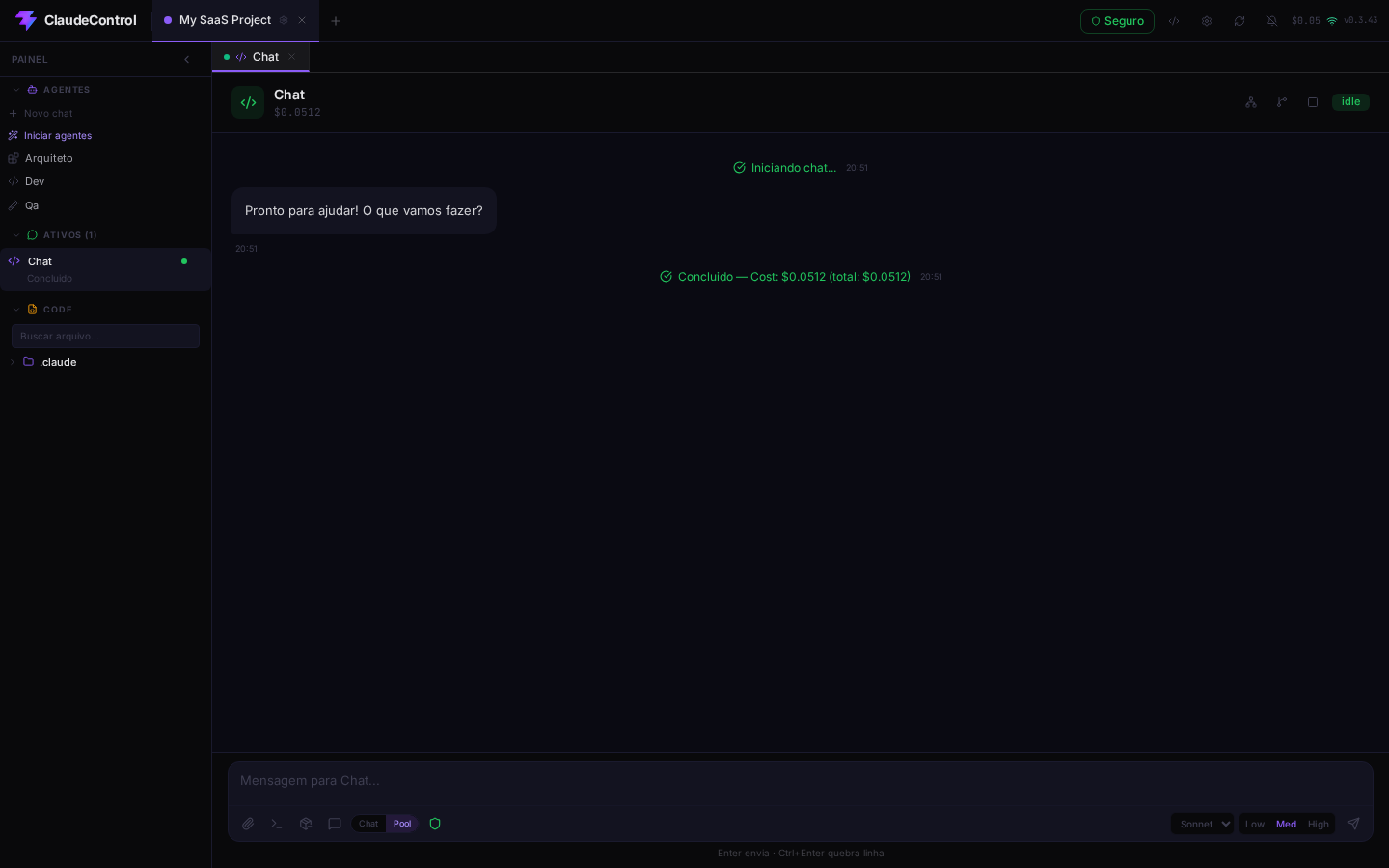
Message Types
| Type | Display |
|---|---|
| User | Purple bubble, right-aligned |
| Agent | Dark bubble, left-aligned |
| System | Centered, with icon (success/error) |
| Tool | Collapsible tool call groups |
| Delegation | Card showing task + status |
All messages include timestamps (HH:MM format).
Sending Messages
Type in the textarea and press Enter to send. Ctrl+Enter adds a line break.
File Attachments
Attach files via:
- Paperclip button — opens file picker
- Drag & drop — drag files onto the input area
- Paste — paste images from clipboard
Supported formats: PNG, JPEG, GIF, WebP, PDF, TXT, MD, CSV.
Attachments are saved to disk (not base64 in logs) and served via HTTP for efficient loading.
Tool Calls
When the agent uses tools (Read, Write, Edit, Bash, etc.), they appear as collapsible groups in the chat. Each tool call shows:
- Tool name and target (file path, command, etc.)
- Expandable input/output
- Inline diff for Edit tools (red → green)
Clean Mode
Toggle clean mode to hide tool calls and show only user/agent text messages. Useful for reading the conversation flow without noise.
Slash Commands
Click the Terminal button (or type / in the command input) to send Claude Code slash commands:
| Command | Description |
|---|---|
/compact | Compress conversation context |
/cost | Show session cost |
/model | Change model |
/memory | Manage memories |
/review | Review code |
/clear | Clear conversation |
/status | Session status |
/help | Show help |
/init | Initialize project |
/config | Show config |
The command input has autocomplete — type to filter, Tab to complete, arrows to navigate.
Compact Shortcut
The compress icon next to the Terminal button triggers /compact with one click.
Permissions
When an agent requests permission to use a tool (in non-bypass mode), an inline card appears with:
- Tool name and affected file/command
- Approve / Deny buttons
- For questions: structured input with options
Bypass Mode
Toggle bypass in the toolbar (shield icon) to auto-approve all tool permissions.
Thinking Indicator
While the agent is working, a rotating text indicator shows status phrases. The stop button is always visible and clickable.