Workspaces
A workspace connects ClaudeControl to a project directory. Each workspace has its own agents, roles, chat history, and settings.
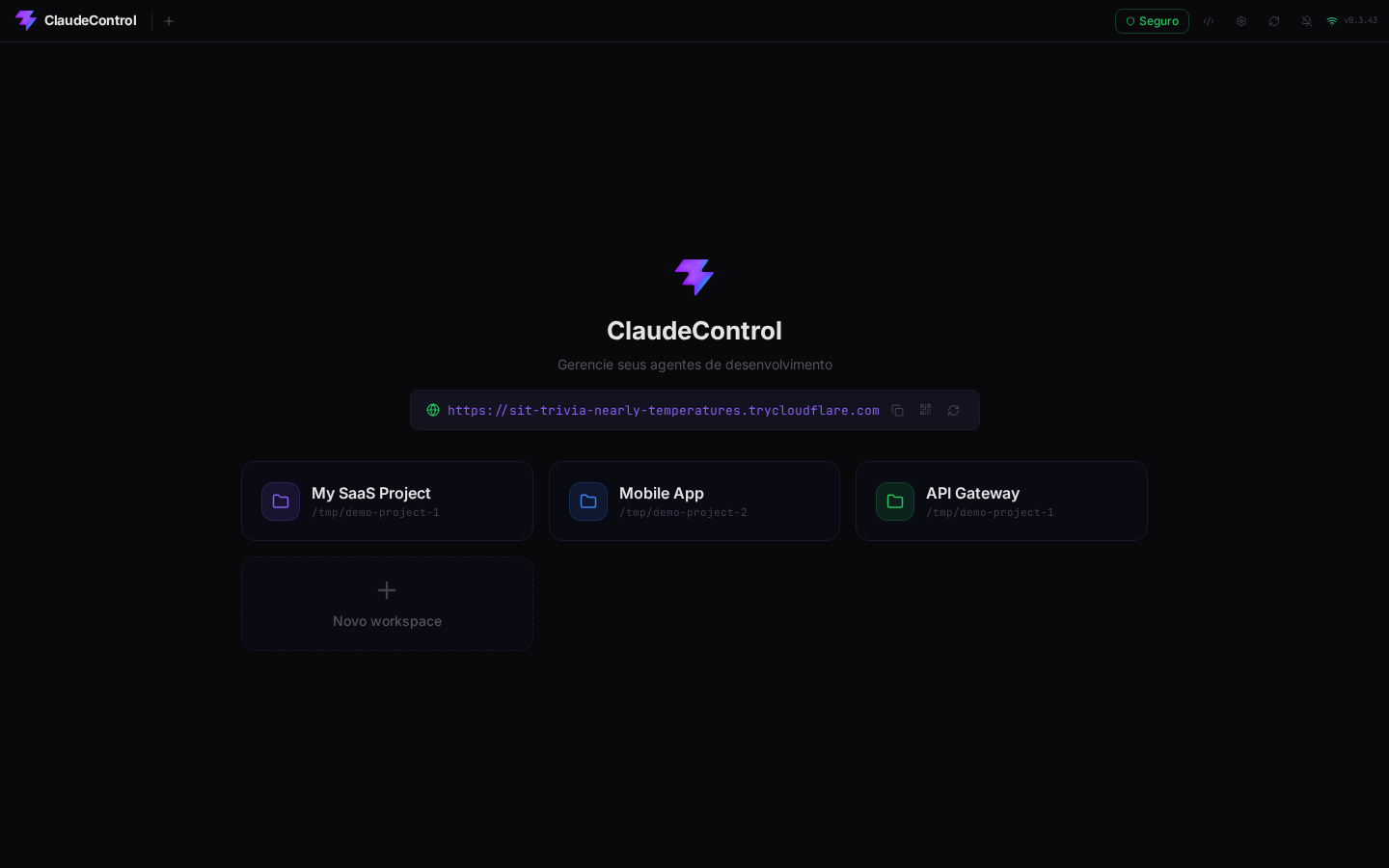
Creating a Workspace
From the home screen, click "Novo workspace" and:
- Browse the filesystem to select a project directory
- Give it a name and pick a color
- Click Salvar
ClaudeControl automatically detects available agent roles from .claude/commands/*.md files in the project.
Workspace Features
Color Coding
Each workspace has a color that appears in the header tabs, making it easy to identify which project you're working on.
Orchestrator Role
You can designate one role as the orchestrator — the agent that can delegate tasks to other specialists. Set this in the workspace edit popover (gear icon on the tab).
Hide / Show
Toggle workspace visibility with the eye icon. Hidden workspaces blur their name and path — useful when sharing your screen.
Reset
Clear all agents, chat history, and logs without affecting your project files. Available in the workspace tab settings (gear icon → "Resetar workspace").
Delete
Permanently remove the workspace. Uses a confirmation modal to prevent accidents.
Workspace Data
All workspace data is stored in:
~/.claudecontrol/data/{workspaceId}/
├── agents.json         # Active agent sessions
├── logs/               # Agent chat logs (JSONL)
├── raw/                # Debug raw logs (can be cleaned)
└── attachments/        # Saved file attachments
Multi-Workspace Support
Open multiple workspaces simultaneously. Switch between them using the header tabs. Each workspace maintains its own:
- Agent tabs and layout
- Chat history
- File editor state
- Git status
Tab state persists across page reloads.